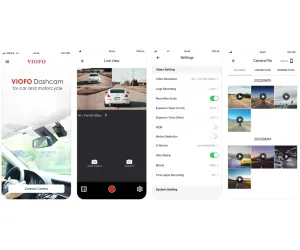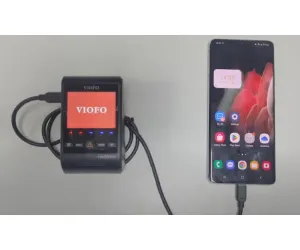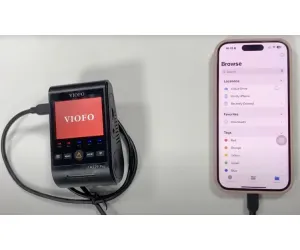

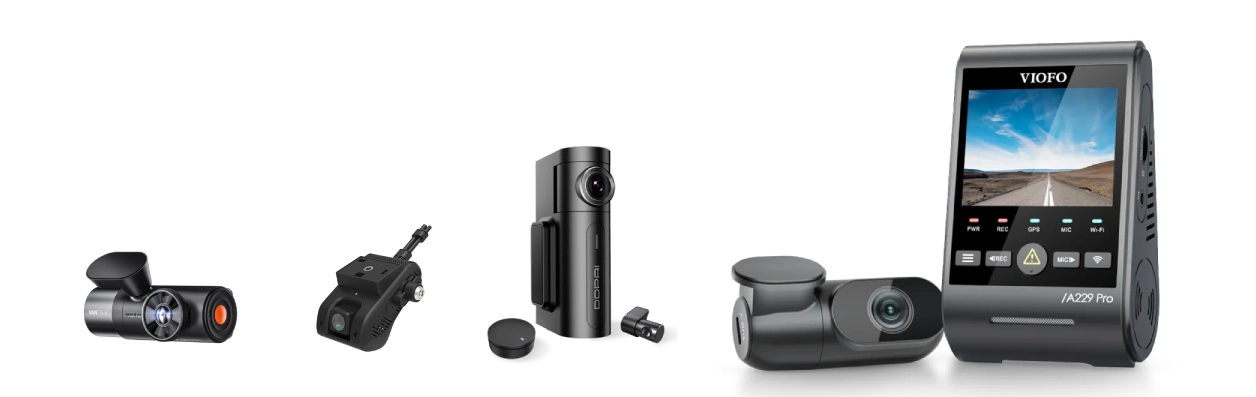



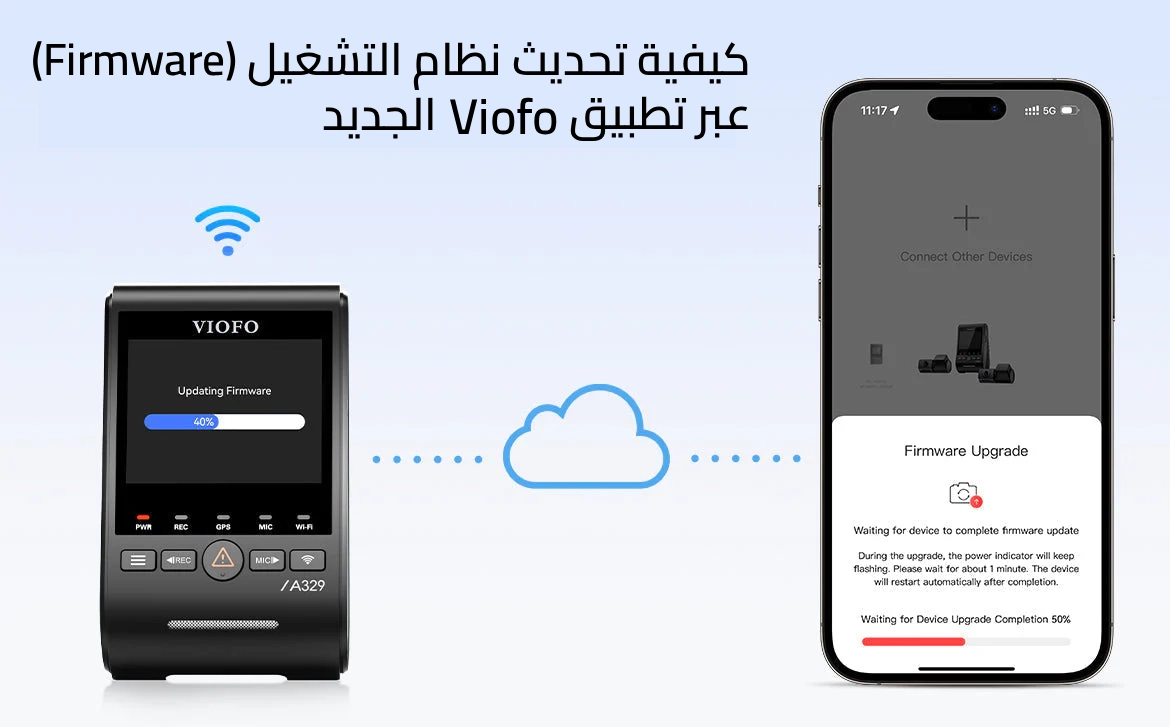
Keeping your dash cam’s firmware up to date is essential to ensure optimal performance, system stability, and access to the latest features. VIOFO has introduced a convenient OTA (Over-the-Air) firmware update system through the VIOFO App, making firmware updates easier than ever.
With OTA updates, users no longer need to manually download firmware files, transfer them to a memory card, or connect their dash cam to a computer. Everything is handled directly through the app, saving time and reducing complexity while keeping your dash cam up to date.
What Is an OTA Firmware Update?
OTA (Over-the-Air) firmware updates allow the dash cam to receive and install new firmware wirelessly through the VIOFO App.
This method replaces traditional firmware update procedures that required:
- Removing the microSD card
- Downloading firmware files manually
- Copying files to the card using a computer
- Re-inserting the card into the dash cam
With the VIOFO App OTA update feature, the app automatically checks for new firmware versions and guides the user through the update process step by step.
What You Need Before Starting an OTA Update
Before starting the firmware update, ensure the following requirements are met:
- A smartphone with a SIM card installed to download the firmware package
- The dash cam is powered on
- Dash cam Wi-Fi is enabled
- The latest version of the VIOFO App is installed on your phone
- Any external SSD connected to the dash cam must be disconnected before updating
Meeting these conditions ensures a smooth and successful update process.
Step-by-Step OTA Firmware Update Guide
1. Turn On Dash Cam Wi-Fi
Enable Wi-Fi on your VIOFO dash cam so it can connect to your smartphone.
2. Open the VIOFO App
Launch the VIOFO App on your phone and select your dash cam model from the device list.
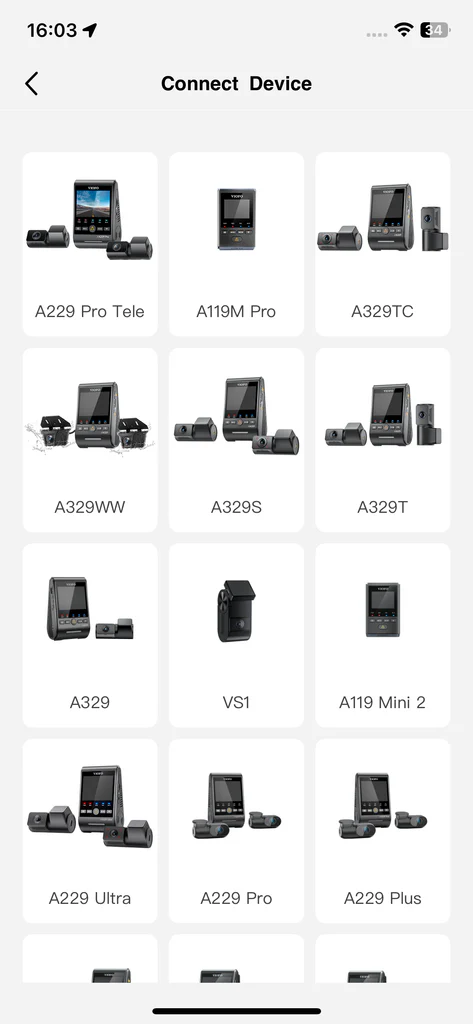
Make sure you are using the newest version of the app to support OTA updates.
Download the App:
● iOS: Download on the App Store
● Android: Get it on Google Play
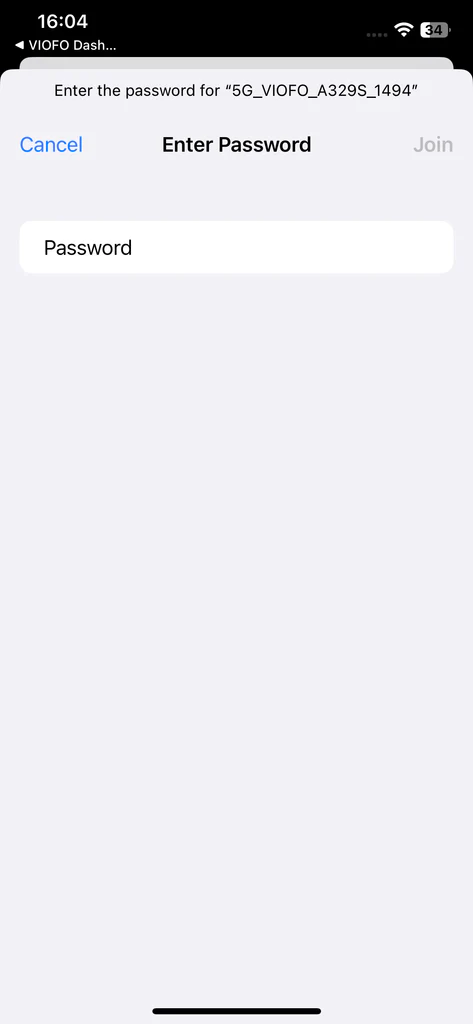
3. Connect Your Phone to the Dash Cam’s Wi-Fi
On your smartphone, open Wi-Fi settings and connect to your dash cam’s Wi-Fi network.
Wi-Fi name format:5G_VIOFO_<Device Name>_xxxx
Default Wi-Fi password:12345678
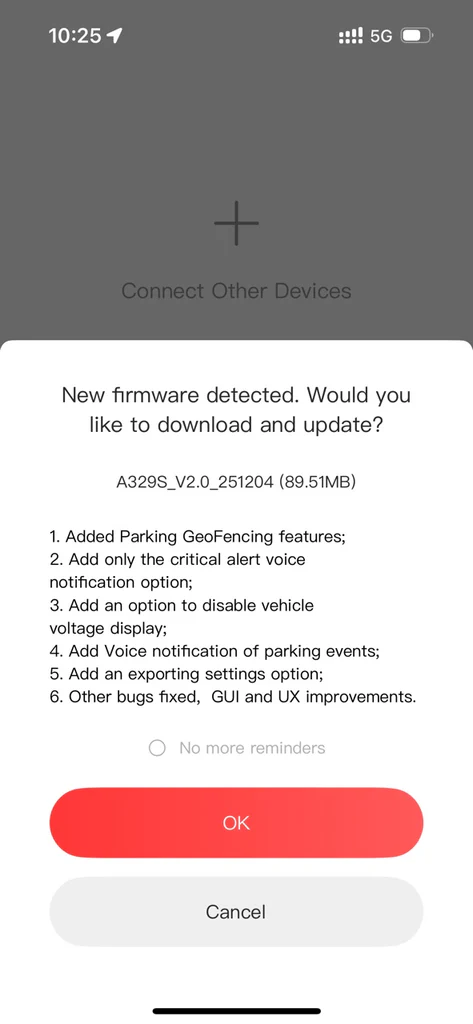
4. Automatic Firmware Detection
Once connected, the app will automatically check for available firmware updates.
If a newer version is available, a pop-up notification will appear prompting you to update.
5. Download the Firmware
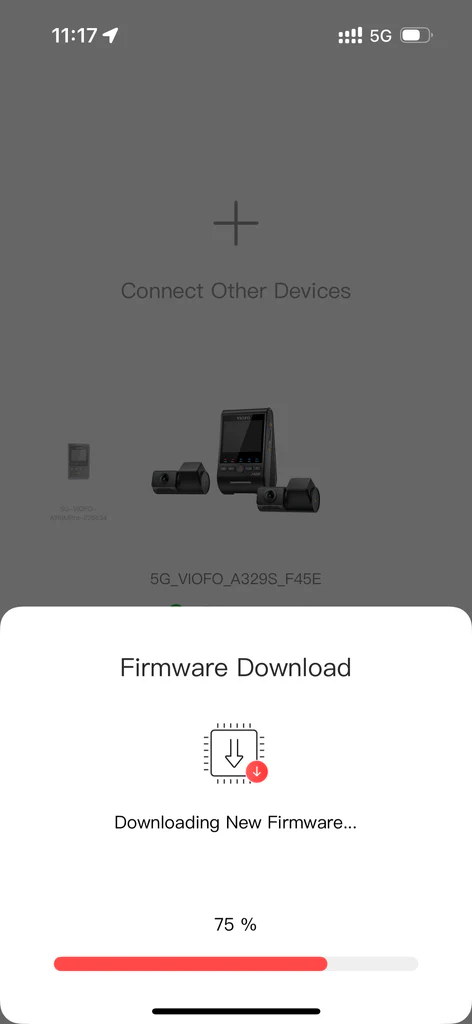
Tap Download in the app.
The firmware package will be downloaded using your phone’s mobile data, which is why a SIM card is required.
6. Firmware Update Starts Automatically
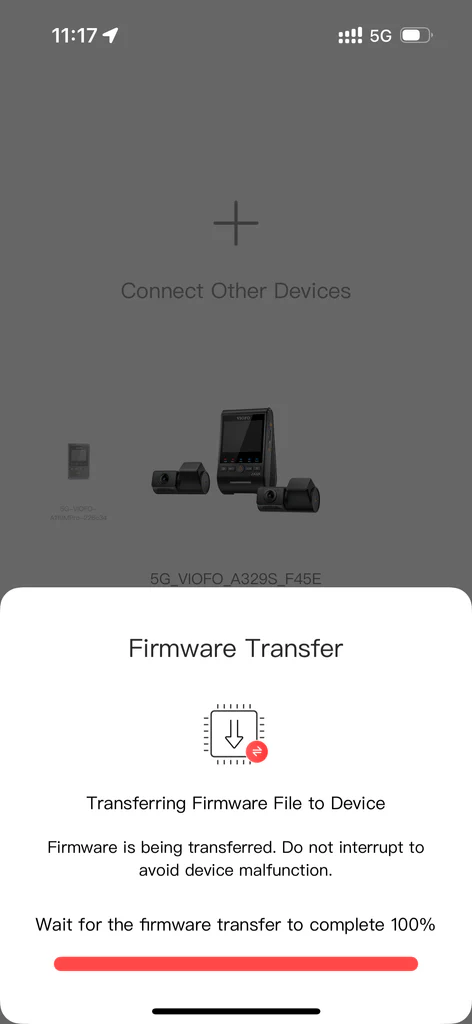
After the download is complete, the app will automatically transfer the firmware to the dash cam.
⚠️ Important:
Do not turn off the dash cam or disconnect power during the update process.
7. Wait for the Update to Complete
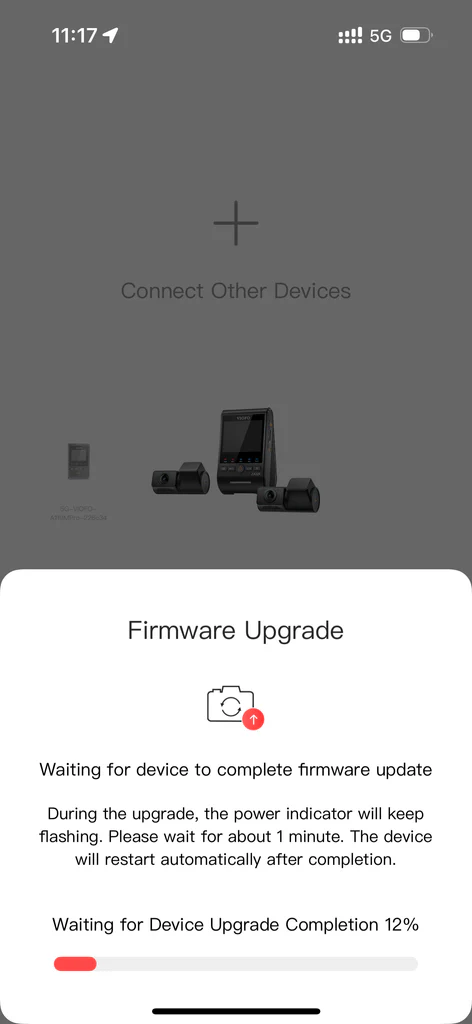
The dash cam will install the firmware automatically.
Once installation is complete, the device will reboot on its own.
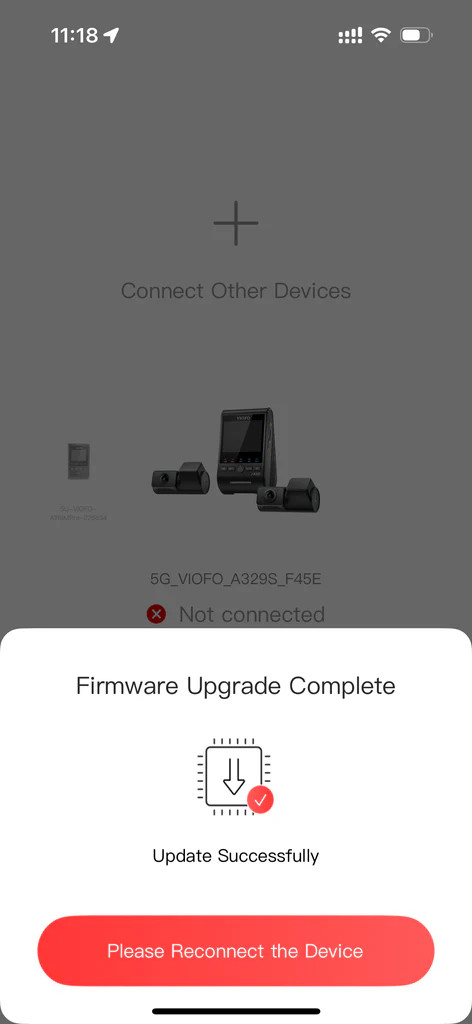
8. Restart and You're Ready to Go
Update Complete
After rebooting, the dash cam will be running the latest firmware version, with all updates and improvements successfully applied.
Final Thoughts
The OTA firmware update feature in the VIOFO App significantly improves the user experience by eliminating complicated manual update steps.
With just a few taps on your smartphone, you can:
- Keep your dash cam up to date
- Improve system stability
- Access the latest features and optimizations
This modern update method ensures your VIOFO dash cam continues to perform at its best with minimal effort.
 Products APPS
 Frequently Asked Questions
 Installation & Setup